

In today’s world, AI chatbots have become essential tools for millions of people. Whether you’re brainstorming ideas, researching topics, solving problems, or just having fun conversations, these interactions often produce valuable information worth keeping. Archiving AI chatbot conversations means saving and organizing these chats so you can refer back to them later. It’s like creating a personal knowledge library from your talks with tools like ChatGPT, Grok, Gemini, or Claude.
Why does this matter? Many users spend hours chatting with AI, generating creative ideas, code snippets, study notes, or professional advice. Without proper archiving, those insights can vanish if you accidentally delete a chat, switch devices, or if the platform changes its policies. In 2026, with AI use exploding, losing conversation history feels like losing part of your digital memory. Archiving helps you build on past discussions, share knowledge with others, maintain privacy by keeping local copies, and even transfer ideas between different AI platforms.
Common Challenges with AI Chatbot Conversations
Saving AI chats isn’t always straightforward. Most platforms prioritize real-time interaction over easy backups, leading to several issues:
- Limited built-in export options — Many chatbots save history automatically, but exporting individual conversations in a clean, readable format can be tricky. Full data exports often come as raw JSON files that aren’t user-friendly.
- Data loss risks — Free accounts might have storage limits or automatic deletions. Switching to a new AI tool means starting from scratch unless you archive old chats.
- Formatting problems — Copy-pasting long threads loses code blocks, images, or structured responses. Transferring chats to another AI (like moving from ChatGPT to Claude) often breaks context.
- Privacy concerns — Third-party tools can access your data, so choosing trusted ones is crucial. Platforms may also use your chats for training unless you opt out.
- Organization overload — As chats pile up, finding specific discussions becomes hard without good search or folder systems.
These challenges have pushed users toward creative solutions, especially as AI tools evolve rapidly.
Latest Developments in AI Conversation Archiving (2025-2026 Insights)
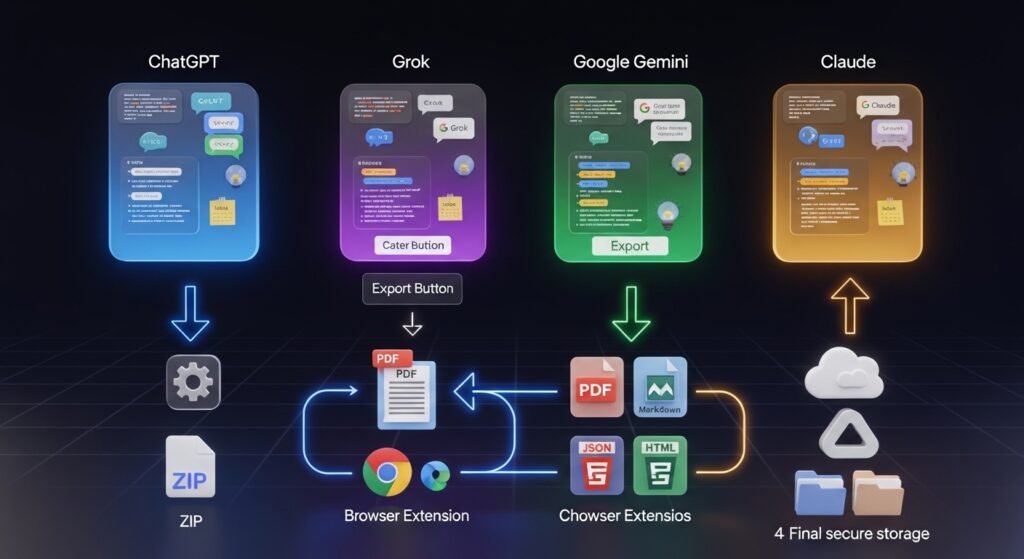
Recent years have seen big improvements in how people handle AI chat history. By early 2026, multi-platform export tools have become incredibly popular. Extensions like AI Exporter and YourAIScroll now support major chatbots including ChatGPT, Grok, Gemini, Claude, and others. These tools let you save conversations as PDF, Markdown, PNG, or text files with just a few clicks, preserving formatting like code and images.
Memory features have also advanced. Grok introduced better conversation recall in 2025, allowing it to reference past chats for personalized responses. Gemini followed suit, with options to pin or search old threads easily. ChatGPT expanded its data export to include more detailed history, while Claude improved shareable links.
YouTube creators have shared practical insights that make archiving easier. For example, tutorials from 2025-2026 highlight how browser extensions eliminate manual copy-pasting. One popular video demonstrates exporting full ChatGPT threads to high-quality PDFs, including artifacts like charts or code outputs. Another shows transferring entire histories between AIs by converting exports to Markdown first—avoiding context loss. Creators emphasize local processing in tools (no data sent to external servers) for better privacy. A common tip from these videos: Always export long or important chats immediately, as some platforms don’t save incomplete responses.
These updates reflect growing demand for portable AI knowledge. Users now treat chat archives like digital notebooks, syncing them to apps like Notion for better organization.
Practical Solutions and Step-by-Step Tips for Archiving
Here are reliable ways to archive conversations from the most popular AI chatbots. We’ll cover built-in methods first, then easier third-party options.
ChatGPT (OpenAI)
OpenAI offers a solid official export:
- Click your profile icon in the bottom left.
- Go to Settings > Data Controls > Export Data.
- Confirm the request—you’ll get an email with a ZIP file containing HTML and JSON versions of all chats.
For individual conversations:
- Use share links for quick sharing.
- Install a Chrome/Edge extension like AI Exporter.
- Open the chat, click the extension icon, select the thread, and choose PDF or Markdown format.
Tip: Extensions handle long threads better, including images and code blocks.
Grok (xAI)
Grok saves history automatically and has a memory feature for context:
- View past chats in the app or on grok.com via your profile.
- For full backup: Go to settings and request account data download—this includes conversation history.
Individual exports often need extensions:
- Tools like YourAIScroll or bookmarklets save chats as formatted HTML.
- YouTube tutorials recommend printing to PDF from the browser for quick saves, but extensions preserve interactive elements better.
Google Gemini
Gemini integrates with your Google account and saves chats in activity:
- Access recent threads from the menu or Gemini Apps Activity page.
- Pin important ones for easy access.
- Gemini now references past chats automatically.
No direct single-chat export exists, so use extensions:
- AI Exporter works well here, converting threads to clean PDFs.
- Some users sync to Google Drive indirectly through activity logs.
Tip: Enable memory settings for better long-term recall.
Anthropic Claude
Claude has a straightforward data export:
- Click your initials > Settings > Privacy > Export Data.
- Receive a ZIP with JSON files of your history.
For better formats:
- Share conversations via public links, then open in a new browser and print/export.
- Extensions like AI Chat Exporter offer PDF, Markdown, or JSON with selected sections.
A pro tip from recent guides: Use scripts or tools to convert JSON exports into readable Markdown for importing elsewhere.
General Tips and Best Practices
- Use multi-platform extensions → Tools like AI Exporter (available on Chrome and Edge) support most chatbots. They run locally for privacy and allow selective exports.
- Manual backups → For quick saves, select text and copy to a document, or use browser print-to-PDF (Ctrl+P, save as PDF).
- Organize your archives → Store files in folders by topic or date. Sync to cloud services like Google Drive or Notion for searchability.
- Transfer between AIs → Export to Markdown first—it preserves structure best when pasting into a new chatbot.
- Troubleshooting common issues:
- If exports miss images: Use screenshot-based extensions.
- For very long chats: Export in sections to avoid truncation.
- Privacy first: Stick to well-reviewed tools and avoid sharing sensitive info.
- Automation ideas → Some advanced users set up regular full exports or integrate with note-taking apps.
Following these steps ensures you never lose valuable AI-generated content.
Final Thoughts
Archiving AI chatbot conversations is more than just saving text—it’s about preserving your personal knowledge base in an increasingly AI-driven world. With built-in exports improving and clever tools filling the gaps, it’s easier than ever to keep your chats safe and organized. Start with official methods for full backups, then add extensions for daily convenience.
The key takeaway: Treat your AI interactions like important documents. Regular archiving saves time, reduces frustration, and lets you build on past insights effortlessly. Whether you’re a student, professional, or casual user, taking a few minutes to save conversations today will pay off tomorrow. Stay proactive, choose privacy-focused methods, and enjoy the full benefits of your AI companions.
FAQs
Archiving AI chatbot conversations means saving and organizing your chats so you can access ideas, notes, and insights later without losing important information.
AI chats often contain valuable content like research, code, and creative ideas. Archiving prevents data loss and helps build a personal knowledge library.
Yes, conversations can be deleted due to platform limits, account changes, or policy updates, especially on free plans.
Export long chats in sections or use dedicated extensions designed to handle large conversation threads.