
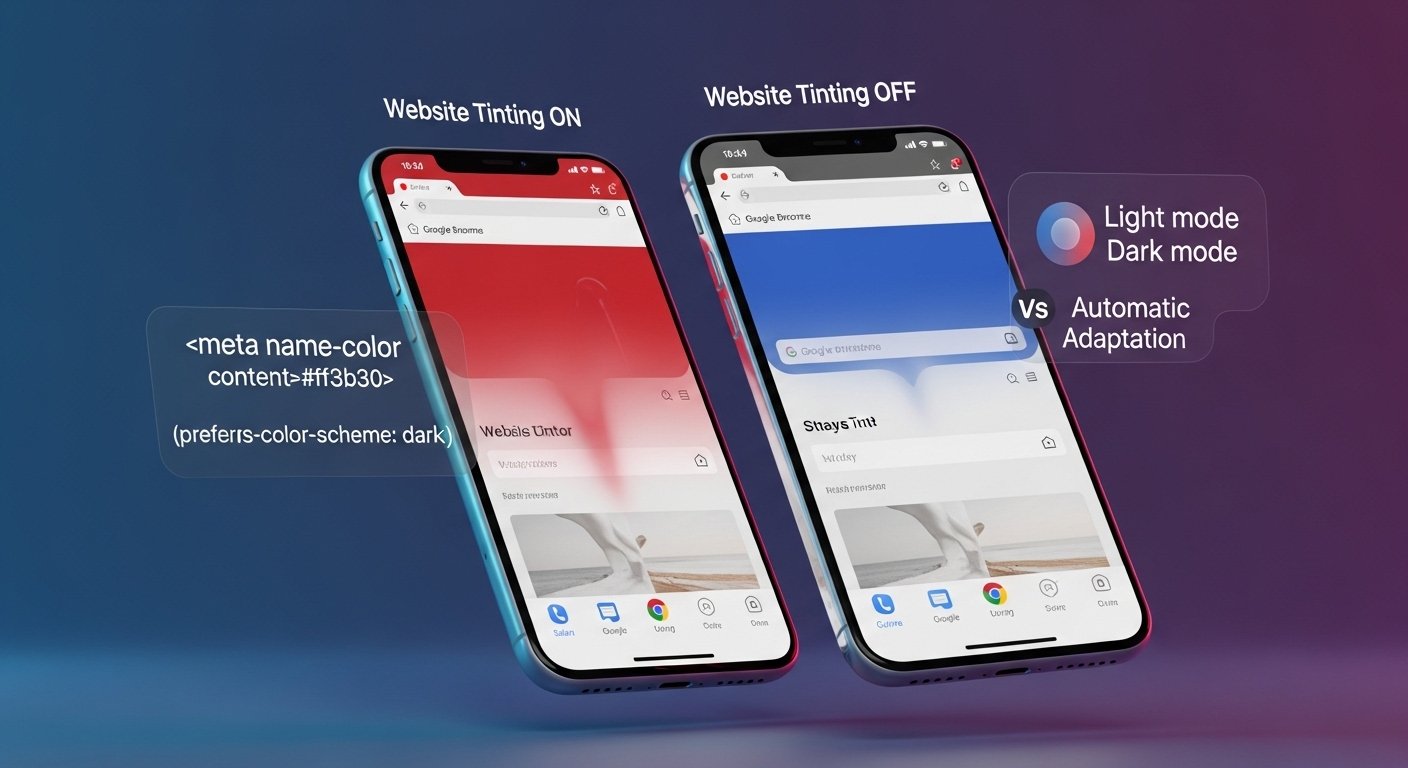
Have you ever opened a website on your phone and noticed the browser’s top bar—the status bar or address bar—suddenly shift color to blend with the site’s design? This subtle but noticeable effect is known as website tinting. It’s a feature in modern mobile browsers that lets a webpage influence the color of the browser’s interface, creating a smoother, more integrated look. For many users, it makes browsing feel more polished and app-like, especially on sites with strong branding. But for others, it can feel unexpected or even distracting. As mobile browsing continues to dominate how we access the web, understanding website tinting helps explain why your screen sometimes changes appearance without warning.
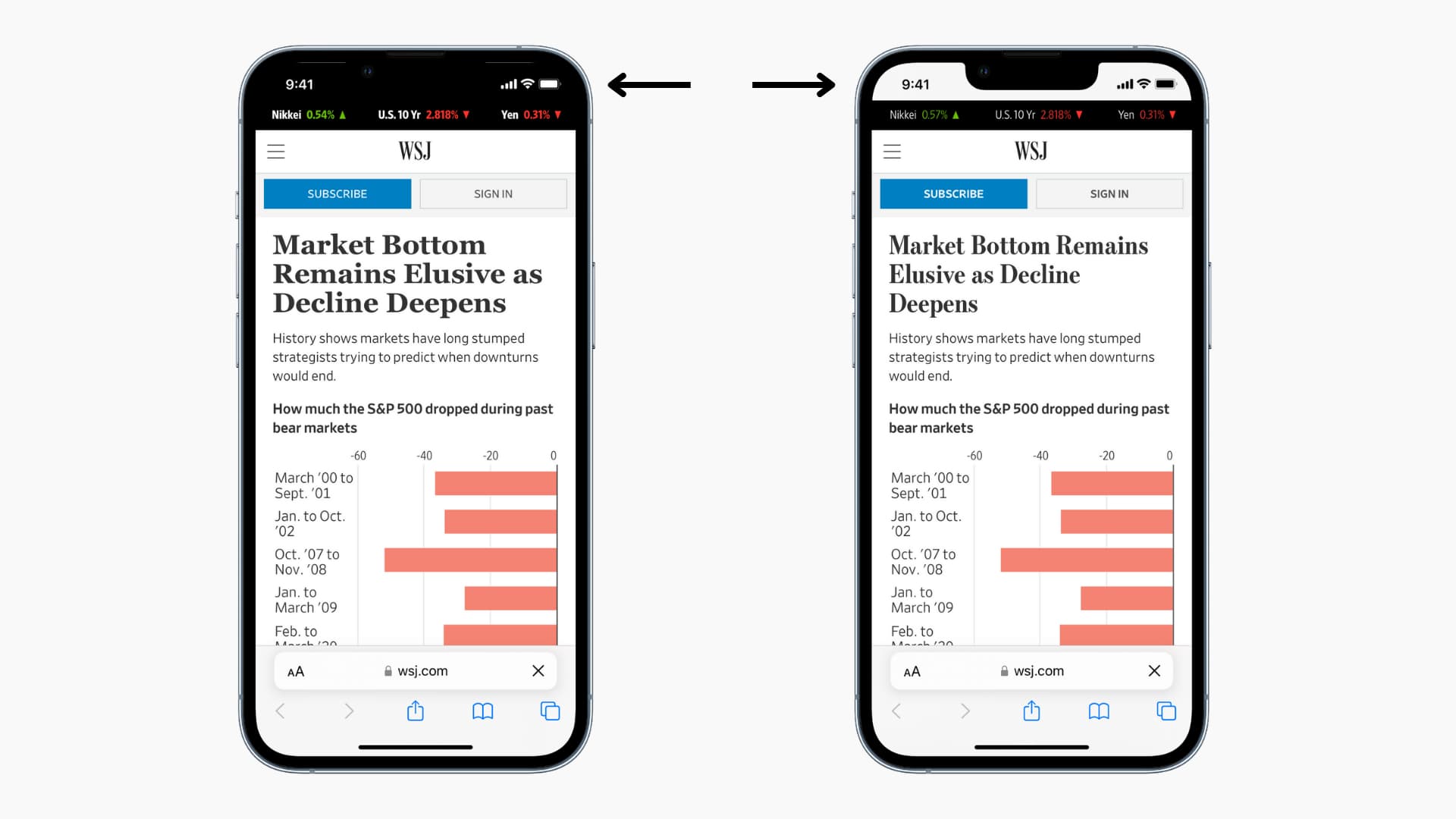
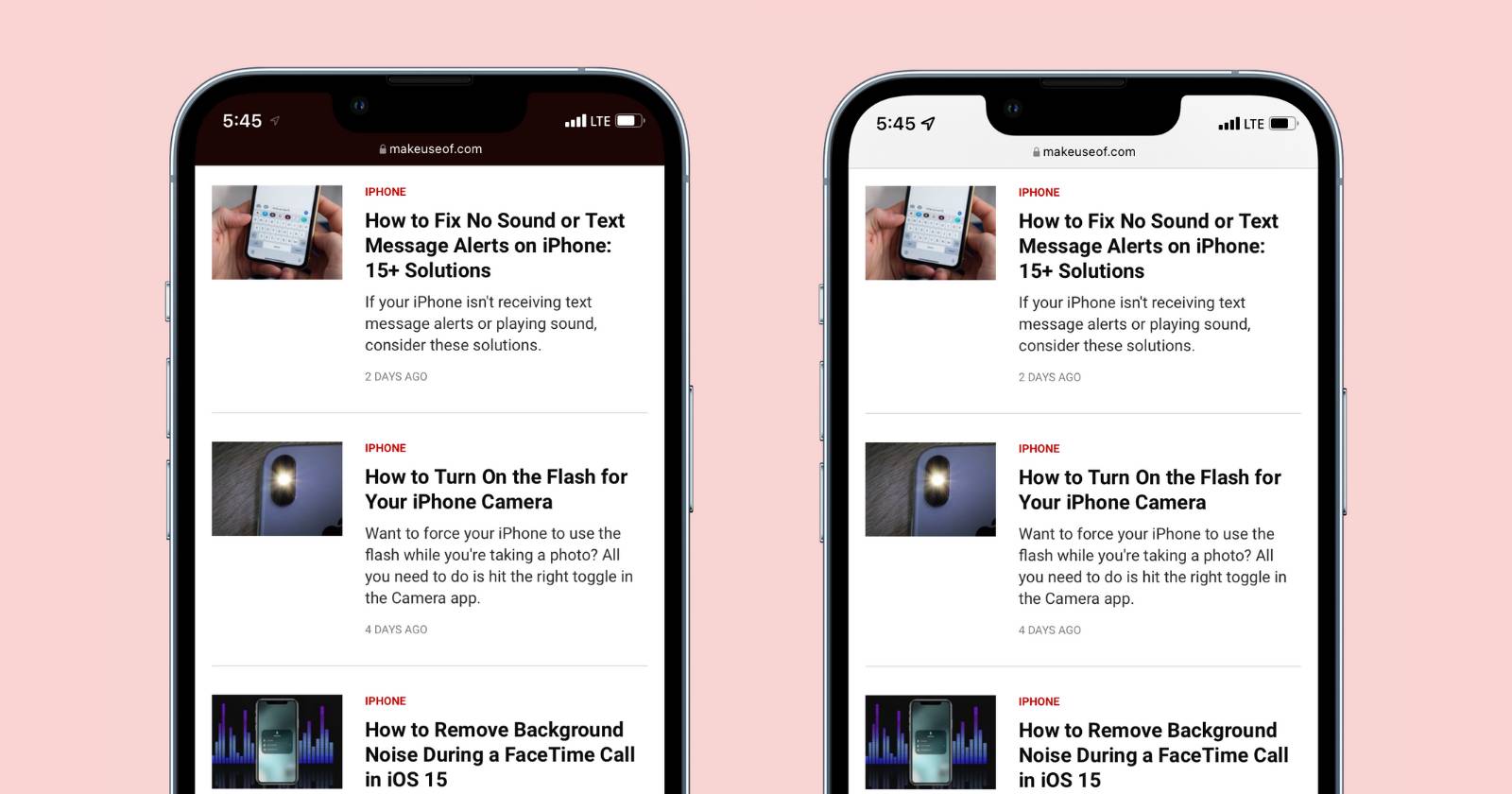
These side-by-side examples show website tinting in action on Safari, with the browser bar matching (left) or staying neutral (right).
How Website Tinting Works
At its core, website tinting happens when a browser adjusts its user interface elements—like the status bar, navigation bar, or address bar—to match colors suggested by the website you’re viewing. This isn’t random; websites declare a preferred color using a simple HTML meta tag placed in the page’s code.
The key tool is the <meta name=”theme-color” content=”#hexcode”> tag. For example, a site with a blue header might use #007bff to hint to the browser: “Make your bars this shade of blue.” Browsers that support it then apply the color for a seamless transition from browser to content.
Support varies by platform:
- Safari on iOS (since iOS 15): The most dynamic version. It can even derive a color from the page if none is specified, and it updates as you scroll.
- Chrome and other browsers on Android: Applies a static tint to the status and navigation bars.
- Desktop browsers have limited or no effect, often just tinting tabs.
Advanced sites can go further by supporting light and dark modes. Using media queries like media=”(prefers-color-scheme: dark)”, developers set different colors based on your device’s settings, ensuring the tint feels natural whether you’re in light or dark theme.

Examples of the theme-color meta tag in action, including dynamic light/dark adjustments.
Why Website Tinting Matters
For everyday users, tinting creates an immersive experience. It blurs the line between a regular website and a native app, making progressive web apps (PWAs) feel more professional. Brands love it because their colors extend beyond the page, reinforcing identity from the moment the site loads.
Developers benefit too—it’s lightweight code with no performance hit, yet it boosts perceived quality. On mobile, where screens are small and immersion counts, a matching tint reduces visual breaks and can encourage longer visits.
Common Issues and User Reactions
Not everyone loves the change. Sudden shifts—say, a red header turning your status bar bright red—can feel jarring. For people with visual sensitivities or color vision deficiencies, unexpected colors might reduce contrast, making icons or text harder to read.
Online discussions and tutorials reflect this divide. Many popular YouTube videos focus on turning the feature off, with creators demonstrating step-by-step how the bar changes unexpectedly on sites like news pages or social media. Viewers often comment that they prefer consistency over surprise, especially when tinting clashes with their phone’s overall theme. As of recent years, complaints remain common, though some appreciate the modern, app-like feel on well-designed sites.
How to Manage ‘Tab Bar’ Color in Safari on iPhone and iPad
A dramatic example: A red website fully tinting the browser interface.
How to Control Website Tinting
For Users: Turning It On or Off
In Safari on iPhone or iPad, you have direct control:
- Open the Settings app.
- Scroll to Safari.
- Under the “Tabs” section, find “Allow Website Tinting.”
- Toggle it off (gray) for a standard bar color, or on (green) to let sites influence it.
On Android, there’s no universal toggle—tinting is usually always active in supported browsers like Chrome.


The Safari setting that lets you enable or disable website tinting.
Tips for Web Developers
If you’re building a site:
- Add the theme-color meta tag early in the <head>.
- Choose a color from your main header or background for smooth blending.
- Support dark mode with separate tags for light and dark schemes.
- Test on real devices—Safari can be more aggressive than Android browsers.
- Prioritize accessibility: Ensure good contrast so status bar icons remain visible.
Avoid flashy or low-contrast colors that might frustrate users.
Latest Insights as of 2026
Website tinting remains a standard feature in major mobile browsers, with ongoing refinements for dark mode and dynamic updates. Recent guides emphasize matching tint to background colors for harmony, and developers increasingly use it alongside PWAs for native-like experiences. YouTube tutorials continue to highlight user preferences, with many still opting to disable it for predictability, while design-focused channels praise it for elevating mobile aesthetics.
Conclusion
Website tinting is a small but smart touch that bridges websites and browser interfaces, offering immersion and branding opportunities on mobile devices. While it enhances the experience for many, its optional nature (especially in Safari) lets you choose what works best for you. Whether you keep it enabled for a modern feel or turn it off for consistency, understanding this feature helps you browse more comfortably. Next time your status bar changes color, you’ll know exactly why—and how to take control if you want.
FAQs
Website tinting is a mobile browser feature that changes the browser’s top or status bar color to match a website’s theme color, creating a more immersive and app-like experience.
It works through the HTML <meta name="theme-color"> tag, which suggests a specific color to supported browsers for the address bar or status bar.
Modern mobile browsers like Safari (iOS 15+) and Google Chrome on Android support website tinting, though behavior varies by platform.
No, only websites that include the theme-color meta tag or support dynamic color schemes use tinting.